Embedded ARM Computers BL410 is an ARM-based industrial computer that supports running Linux systems and is suitable for industrial IoT scenarios. Combined with Node-RED, it can quickly achieve local data acquisition, processing, and visualization for industrial applications. Below are the detailed steps to implement industrial local visualization using BL410 and Node-RED:
Case Details
Embedded ARM Computers BL410 inbuilt quad Cortex A55 cores, it is an ARM-based industrial computer that supports running Linux/Ubuntu systems and is suitable for industrial IoT scenarios. Combined with Node-RED, it can quickly achieve local data acquisition, processing, and visualization for industrial applications. Below are the detailed steps to implement using BL410 and Node-RED:
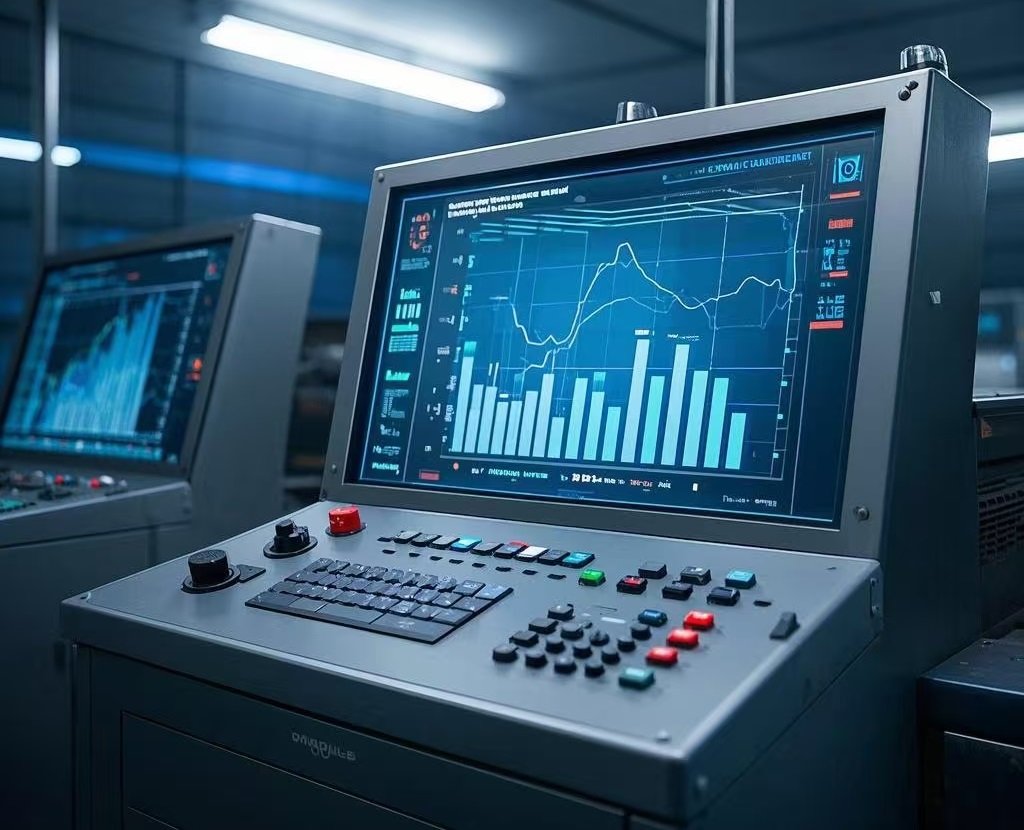
1. Preparation
-
BL410 Embedded ARM Computers: Ensure that BL410 is installed with a Linux system (e.g., Debian or Ubuntu) and connected to industrial equipment (e.g., PLCs, sensors).
-
Network Configuration: Ensure that BL410 Embedded ARM Computers can connect to the industrial network via Ethernet or Wi-Fi.
-
Node-RED Installation: Install Node-RED on BL410 ARM Industrial Embedded Controller.
Install Node-RED
Run the following commands in the terminal of BL410 ARM Industrial Embedded Controller to install Node-RED:
sudo apt update
sudo apt install nodejs npm
sudo npm install -g --unsafe-perm node-red
After installation, start Node-RED:
Access the Node-RED interface: http://:1880.
2. Configure Data Acquisition
Configure the data acquisition module of BL410 ARM Industrial Embedded Controller according to the communication protocol of the industrial equipment (e.g., Modbus, OPC UA, MQTT).
Example: Modbus Data Acquisition
-
Install the Modbus node in Node-RED:
-
Open Node-RED, click the menu in the upper right corner, and select "Manage palette."
-
Search for node-red-contrib-modbus in the "Install" tab and install it.
-
Configure the Modbus node:
-
Drag a Modbus Read node into the flow.
-
Configure Modbus connection parameters (e.g., device IP, port, register address).
-
Set the read frequency and data points.
3. Create Node-RED Data Flow
Design the data flow in Node-RED to achieve data acquisition, processing, and visualization.
Example Flow: Modbus Data Acquisition + Visualization
-
Modbus Read Node: Read device register data.
-
Function Node: Format or calculate the data.
-
Dashboard Node: Visualize the data.
Install Dashboard Plugin
Install the node-red-dashboard plugin in Node-RED:
-
Click the menu in the upper right corner and select "Manage palette."
-
Search for node-red-dashboard in the "Install" tab and install it.
4. Design Visualization Interface
Use Node-RED Dashboard to create a local visualization interface.
Example: Create a Dashboard and Trend Chart
-
Drag the following nodes into the flow:
-
Gauge Node: Display real-time data (e.g., temperature, pressure).
-
Chart Node: Display data trends.
-
Text Node: Display text information.
-
Configure the data source and display style for each node.
-
Click "Deploy" to deploy the flow.
Access the Dashboard interface: http://:1880/ui.
5. Deploy and Test
-
Deploy Flow: Click the "Deploy" button in Node-RED to make the configuration effective.
-
Test Data: Check if the Dashboard displays the correct real-time data.
-
Optimize Interface: Adjust the layout and style of the Dashboard as needed.
6. Advanced Features (Optional)
Data Storage
Store the collected data in a local or remote database (e.g., InfluxDB, MySQL):
-
Install the corresponding Node-RED plugin (e.g., node-red-contrib-influxdb).
-
Configure the storage node to write data to the database.
Alarm Function
Set alarm rules using Node-RED:
-
Use the Switch node to set alarm conditions.
-
Use the Notification node to send alarm information (e.g., email, SMS).
Remote Access
Configure the network settings of BL410 to allow remote access to the Node-RED Dashboard via the internet:
-
Configure port forwarding or VPN.
-
Use HTTPS for encrypted access (recommended).
Example Node-RED Flow
Below is a simple Node-RED flow example for reading Modbus data and displaying it in the Dashboard:
[
    {
        "id": "f1b1c1a0.1b1c1",
        "type": "modbus-read",
        "z": "d1b1c1a0.1b1c1",
        "name": "Read Temperature",
        "topic": "",
        "showStatusActivities": false,
        "showErrors": false,
        "unitid": "1",
        "dataType": "HoldingRegister",
        "adr": "0",
        "quantity": "1",
        "rate": "1",
        "rateUnit": "s",
        "delayOnStart": false,
        "startDelayTime": "",
        "server": "c1b1c1a0.1b1c1",
        "useIOFile": false,
        "ioFile": "",
        "useIOForPayload": false,
        "x": 150,
        "y": 100,
        "wires": [
            [
                "f2b1c1a0.1b1c1"
            ]
        ]
    },
    {
        "id": "f2b1c1a0.1b1c1",
        "type": "function",
        "z": "d1b1c1a0.1b1c1",
        "name": "Format Data",
        "func": "msg.payload = msg.payload / 10; // Example: Convert raw data to temperature\nreturn msg;",
        "outputs": 1,
        "noerr": 0,
        "x": 350,
        "y": 100,
        "wires": [
            [
                "f3b1c1a0.1b1c1"
            ]
        ]
    },
    {
        "id": "f3b1c1a0.1b1c1",
        "type": "ui_gauge",
        "z": "d1b1c1a0.1b1c1",
        "name": "Temperature Gauge",
        "group": "g1b1c1a0.1b1c1",
        "order": 1,
        "width": 0,
        "height": 0,
        "gtype": "gage",
        "title": "Temperature",
        "label": "°C",
        "format": "{{value}}",
        "min": 0,
        "max": 100,
        "colors": [
            "#00b500",
            "#e6e600",
            "#ca3838"
        ],
        "x": 550,
        "y": 100,
        "wires": []
    }
]
Summary
With BL410 linux Based Industrial Pc and Node-RED, local data acquisition and visualization for industrial applications can be quickly achieved. Node-RED's graphical programming and rich plugin ecosystem make the development process more efficient and flexible. Based on actual needs, functionalities such as data storage, alarms, and remote access can be further expanded.


