Install Flowfuse Node-RED on BLIIoT Industrial Edge Gateway ARMxy BL340
By combining Flowfuse with the Industrial Edge Gateway BL340, organizations can seamlessly integrate OT and IT layers, with low-code development driving smart manufacturing and digital transformation.
Case Details
Prerequisites
Before proceeding with the installation, ensure you have the following:
NodeJS Version – The Device Agent requires Node.js 18 or later.
Operating System/Image – It can be installed on most Linux distributions, Windows, and MacOS, or via the provided Docker image. (Most ARMxy series industrial edge gateways can be installed)
BLIIOT ARMxy BL340– A functioning device with internet access.
FlowFuse Account- Ensure you have a FlowFuse account. If not, you can create a free account that allows you to manage up to two edge devices for free. For more information, refer toFlowFuse Free Tier
Sudo Privileges– Administrator access to install required packages.
Getting Started
This guide explores how to install and run Node-RED through the FlowFuse Device Agent on the BLIIOT ARMxy BL340, enabling you to build, manage, and scale Node-RED flows efficiently from a remote location.
Installing FlowFuse Device Agent
Before we start, it is recommended to update and upgrade your system to ensure all your packages are up to date:
sudoapt update &&sudoapt upgrade -y
Next, let's install the FlowFuse device agent with the following script.
This script installs the Node.js runtime (if not already installed), sets up the FlowFuse device agent, and configures the device to automatically run the FlowFuse agent on boot and restart it in case of a crash.
To verify that the service is running, use the following command:
sudo systemctl status flowfuse-device-agent.service
If running, you should see a result similar to the one shown in the image below:
Registering the Device to Connect to FlowFuse
Once you have installed the FlowFuse Device Agent, you need to register the hardware to connect it to your FlowFuse team.
For instructions on how to register the hardware with your FlowFuse team, follow the documentation:Register your Remote Instance.
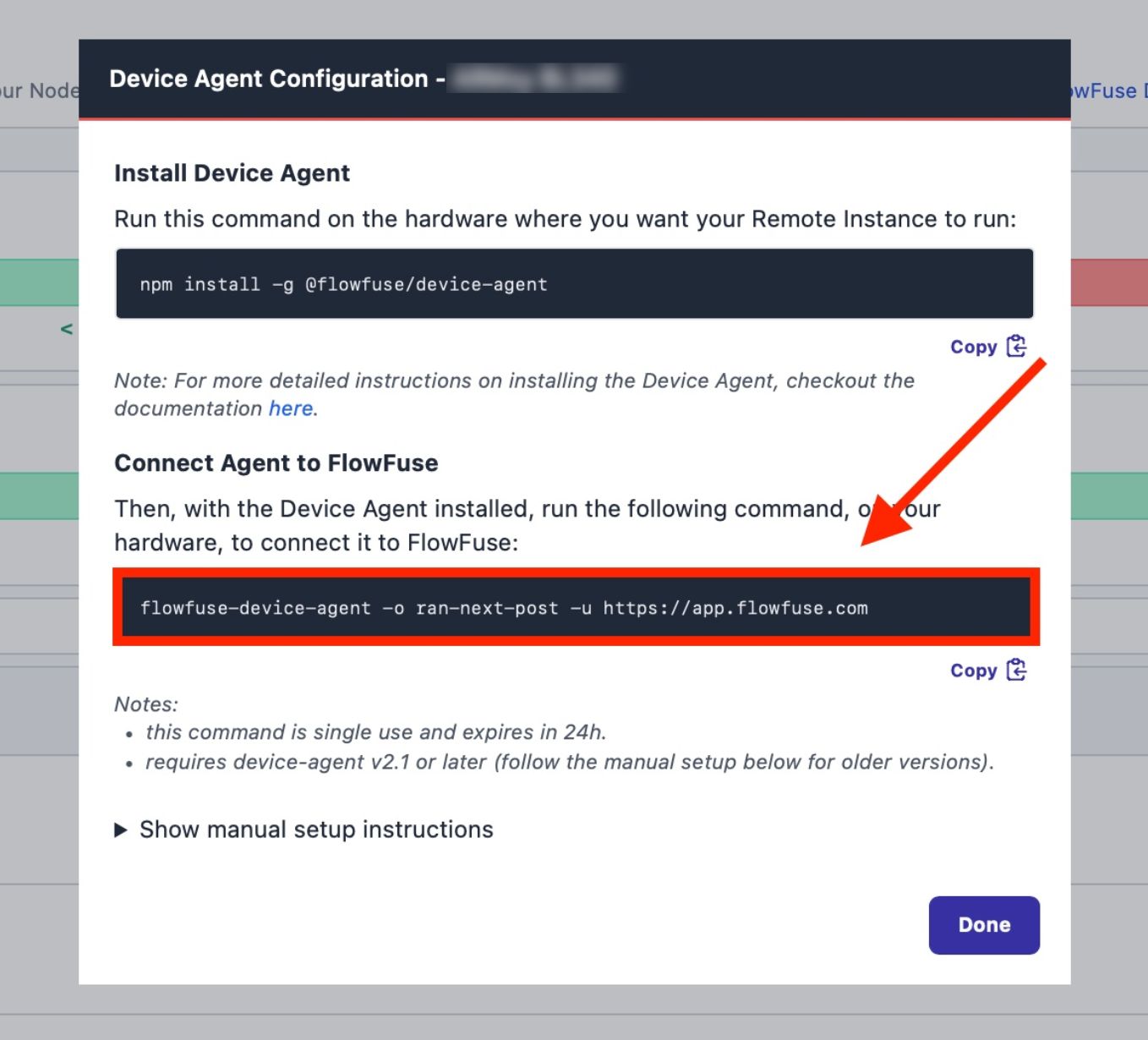
When registering your hardware, you will be presented with a dialog containing a one-time passcode command that the Device Agent uses to retrieve its configuration.Make sure to copy it.
Connecting Device
Execute the command you have copied with sudo as shown below
Once executed, you should see an output similar to the one below, indicating that the FlowFuse Device Agent has been successfully configured:
[AGENT]3/21/2025 7:09:25 PM [info] Entering Device setup... [AGENT]3/21/2025 7:09:27 PM [info] Device setup was successful [AGENT]3/21/2025 7:09:27 PM [info] To start the Device Agent with the new configuration, run the following command: [AGENT]3/21/2025 7:09:27 PM [info] flowfuse-device-agent
Now, you can check the remote instance in the FlowFuse platform, where its status should be displayed as"running.".
Now, when your device reboots, the FlowFuse Device Agent will automatically start, ensuring that your BLIIOT ARMxy BL340 remains connected to the FlowFuse platform.
Accessing Node-RED Editor.
Login into your FlowFuse account.
Click on the remote instances option in the left sidebar.
Click on the device and enable the developer mode by clicking on the top right-corner switch.
Once Developer Mode is enabled, click on the Open Editor option located next to the that switch.